
BLACK2005 · WIKI
Black2005 Macro Wiki
Manage hunting, potions, skill rotations and item filters inside the game. Seven menus, one macro.
Start in three steps
- CTRL + click HP / MP potions in Auto Potion and choose their thresholds.
- Select learned, weapon-compatible skills in Auto Skills. Apply with Save.
- Go to your hunting spot, configure Auto Hunt and press F5. Press F5 again to stop.
Shortcuts
- F6
- Macro window
- T
- Auto Potion
- F5
- Start / stop hunting
- CTRL + click
- Register a potion or compatible profile item
- ESC
- Close the window; hunting continues
T does not open Auto Potion while typing in a text field. Closing the window does not stop hunting; use F5 or Auto-Hunt.
Auto Potion
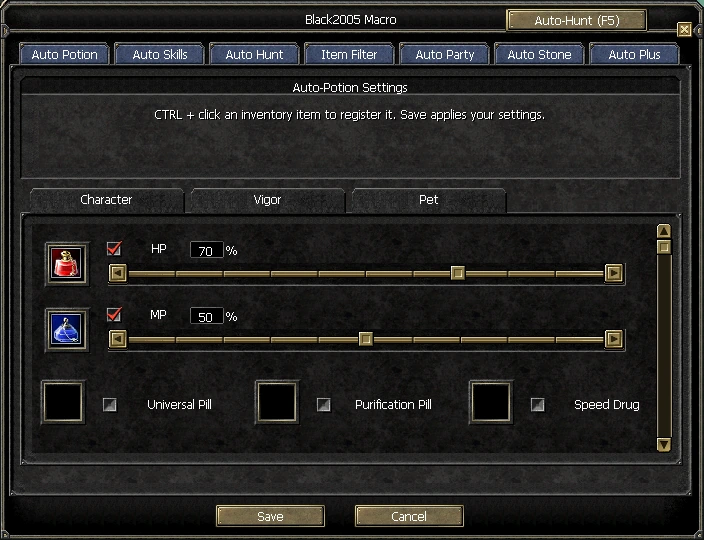
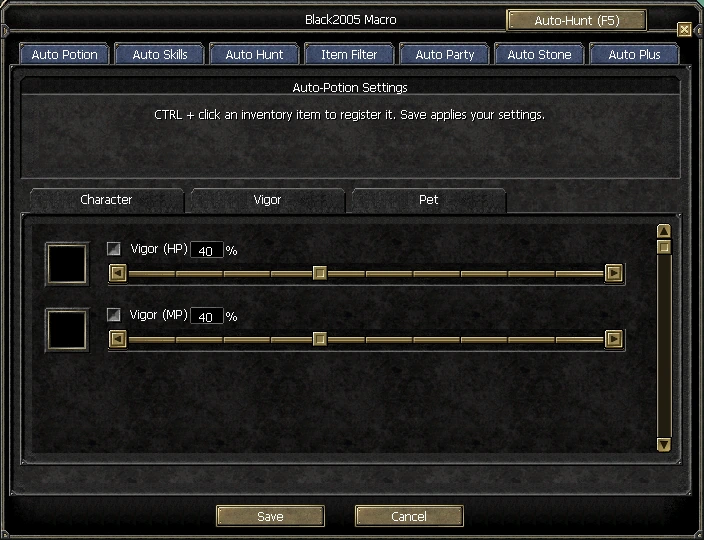
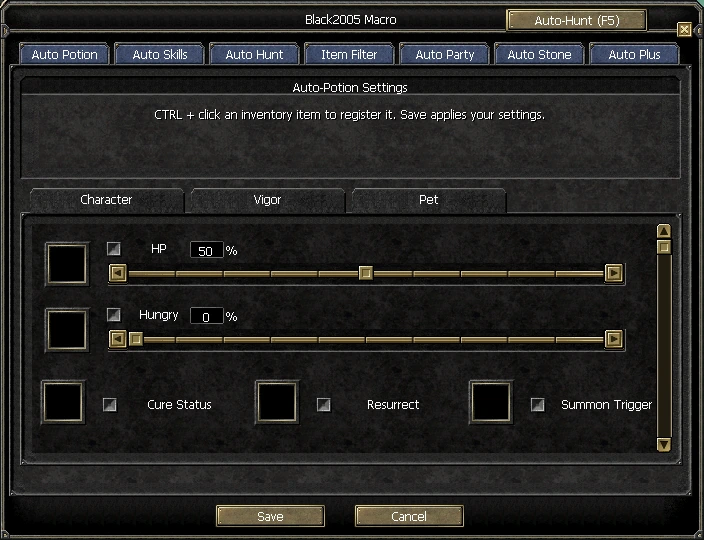
Configure HP, MP, Vigor and classic pet supplies.
How to use
- Open inventory and CTRL + left click the appropriate potion.
- Enable the row and move its slider to the desired threshold.
- Configure Character, Vigor and Pet separately, then Save.
The matching potion must be in your bag. Unchecked rows are disabled.
More views
Auto Skills
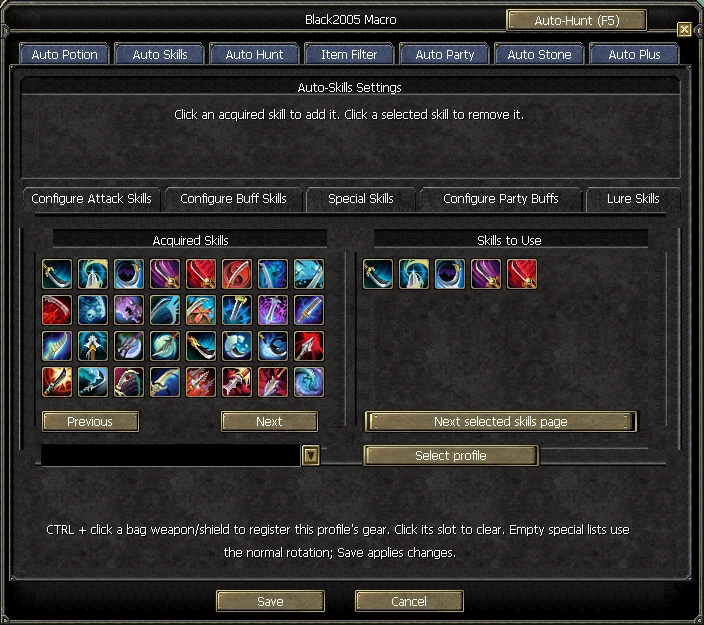
Build attack, buff and special-target rotations.
How to use
- Click an acquired skill to add it to Skills to Use.
- Click a selected skill to remove it. Use Configure Buff Skills for buffs.
- Choose a Champion / Giant / Unique profile if needed. CTRL + click a bag weapon or shield to register profile gear.
Use learned skills that match your weapon. Empty special-target lists use the normal rotation. Save applies changes.
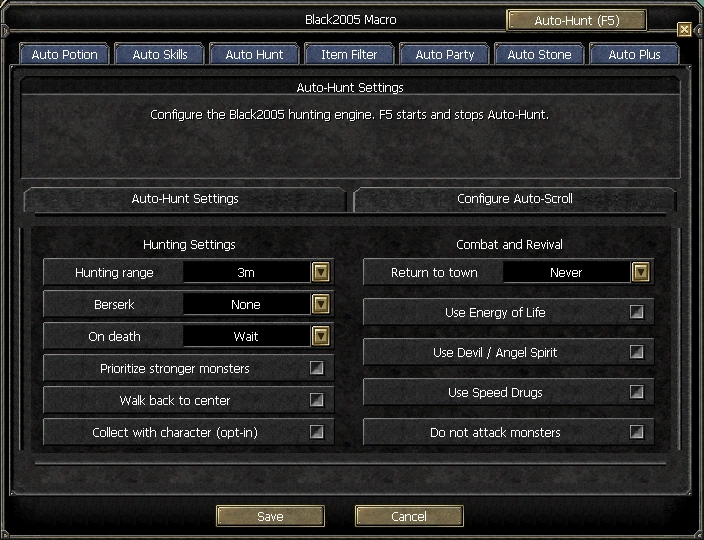
Auto Hunt
Choose your hunting area and behaviour.
How to use
- Stand at your hunting spot and select the range.
- Set hunting, return and resurrection options to match the supplies you carry.
- Save, then start with F5 or Auto-Hunt. Use the same control to stop.
Set up Auto Skills first. Character pickup must be enabled separately in Item Filter.
Item Filter
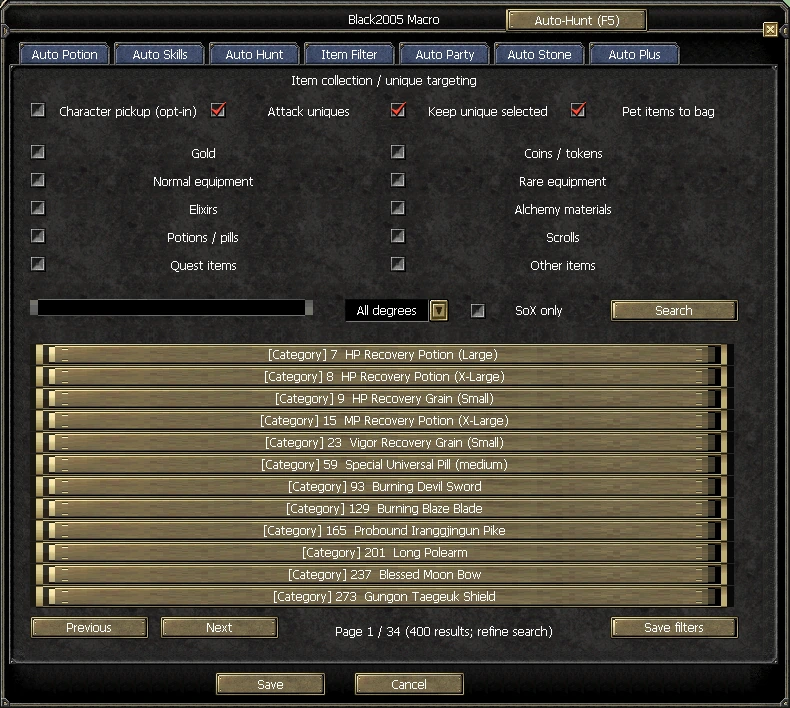
Choose pickup rules by category or individual item.
How to use
- Enable Character pickup only if you want the character to collect drops.
- Choose category, degree and SoX filters; search for a particular item.
- Choose Collect / Skip / Category per item. Configure unique targeting and Keep unique selected as needed.
Pet items to bag controls transfers from the pet inventory. Keep free bag slots. Character pickup is disabled by default.
Auto Party
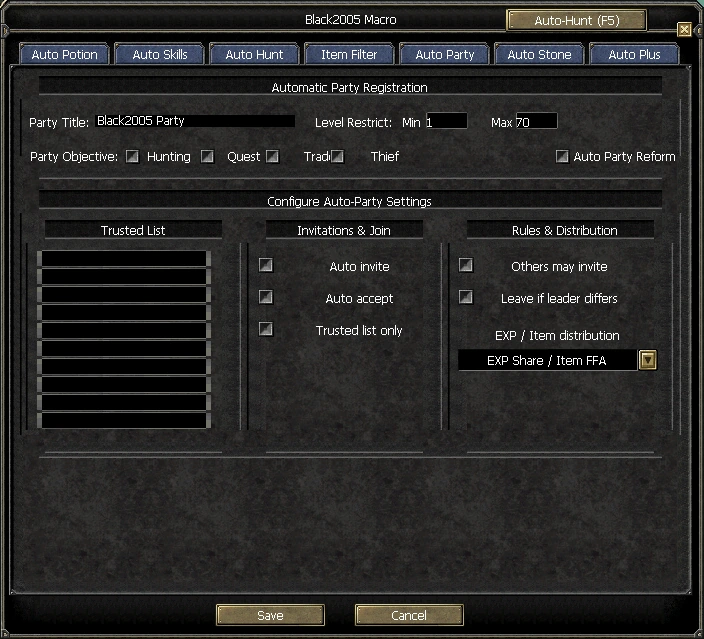
Configure party invites, acceptance and preferences.
How to use
- Enable the invite or acceptance options you need.
- Set names, level range and party type.
- Configure party buffs in Auto Skills and Save.
Event party restrictions still apply. This menu does not override a solo event’s party ban.
Auto Stone
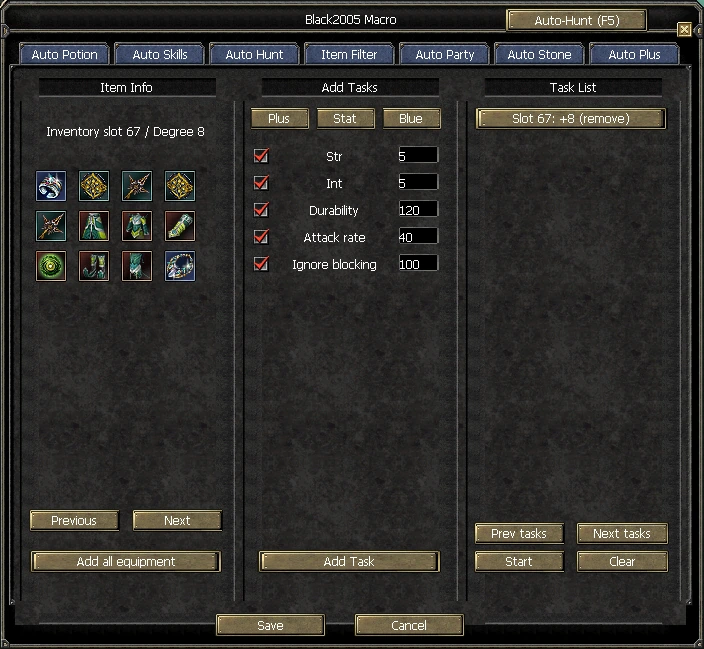
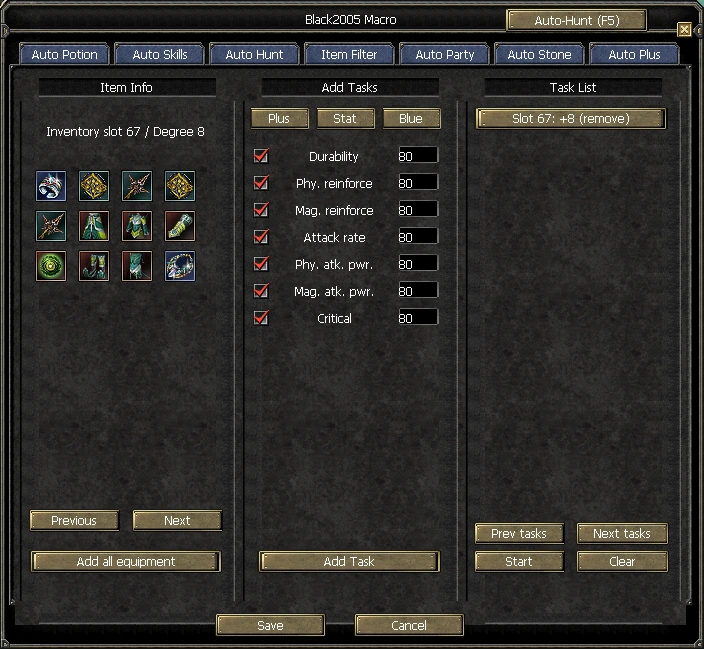
Queue Stat and Blue tasks.
How to use
- Select an item, choose Stat or Blue and set the target.
- Add Task to the queue and prepare the required materials.
- Review the queue and start. Avoid moving inventory items during execution.
Auto Stone and Auto Plus show the same task queue. Completed tasks are removed. Read the displayed reason if materials are missing.
More views
Auto Plus
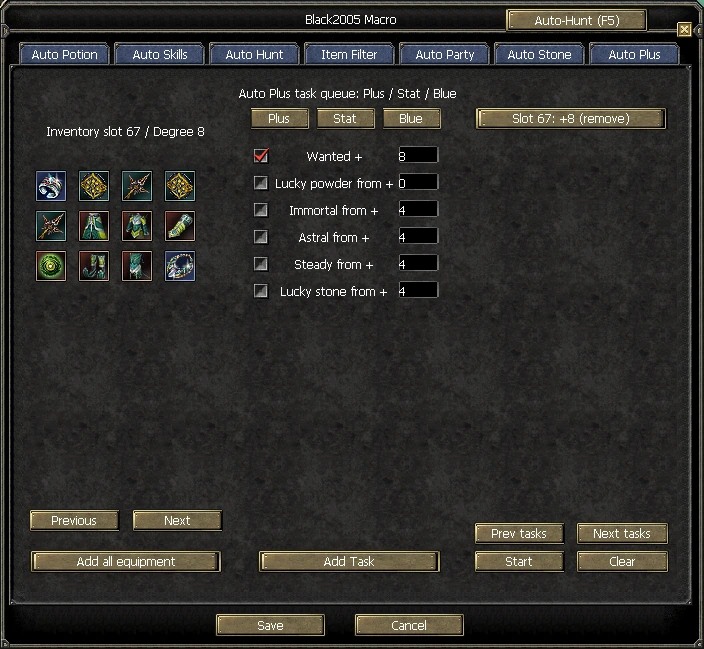
Queue target enhancement levels for multiple items.
How to use
- Select an item, its target + level, powder and protection settings.
- Use Add Task; repeat for other items.
- Prepare elixirs, matching-degree powder and selected protection materials, then start. Use Stop when needed.
Completed items leave the queue and the next task starts. Saved queues do not start automatically after login. Enhancement success is never guaranteed.
Quick answers
Does closing the window stop hunting?
No. Use F5 or Auto-Hunt to stop.
Will my character pick up everything?
Character pickup starts disabled. If enabled, Item Filter rules apply.
A skill or material is missing?
Check learned skills, weapon compatibility, item degree and bag supplies. Refresh the list after inventory changes.
How do I apply settings?
Press Save after editing. Saved alchemy queues do not start by themselves.
Captured in game using [GM]Scrapy.